New Icon, New Look!
This version was originally intended to be a minor patch, but our designer unexpectedly submitted the new icons before the deadline... Well, let's just jump straight to version 1.3.0! In this update, we changed the startup icon of Eink Mode, allowing users to more intuitively understand the status of whether Eink Mode is on or off on a particular page.
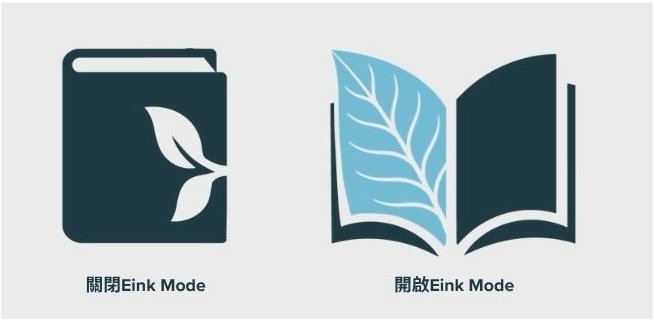
Additionally, the functionality of the icon has also changed; now clicking the icon not only activates Eink Mode, but clicking it again can also turn it off, providing an alternative option for users who do not want to use keyboard shortcuts or navigate to the toolbar to press the exit button.
Images too small to see details? Just zoom in!
This update has evolved the image browsing feature we introduced last time. Now, users in image browsing mode can zoom in on images using the mouse wheel (desktop), pinch gestures (mobile), or by clicking the zoom in and zoom out buttons in the upper right corner. Each image can be enlarged up to 10 times its original size, making details clearer and allowing for more detailed examination of the image content when needed. This feature is particularly useful for users of color electronic paper displays with lower screen resolution. After an image is enlarged, a small window will appear in the lower left corner, allowing users to click on the position of the small window to jump directly to a specific part of the image, eliminating the hassle of dragging with a finger, thereby avoiding latency and ghosting effects when used on electronic paper. The small window preview image also helps users not to lose track after zooming in. If the position of the small image happens to block the details you want to see, you can click and drag to move the small image to another location, ensuring no blind spots while viewing the image!
New Note Management Appearance
For note management, this update introduces a "card-style" appearance, with each webpage presented as a card that displays the webpage title, content summary, number of notes, and related tags, enabling users to quickly browse and manage their notes. This new design not only enhances note management efficiency but also makes the overall user experience more enjoyable. Users who prefer a list format need not worry; we have added a toggle button in the upper right corner of the page, allowing you to switch to a list-style appearance at a click, so you can manage your notes according to your preferences.
Finally, we changed the UI display screen when entering Eink Mode: now, the user manual will only be displayed the first time the browser is opened and Eink Mode is activated, or when there are new updates to Eink Mode; at other times, entering Eink Mode will only display the title of the webpage article. The intention of still displaying the webpage article title is to make users aware that the screen has entered Eink Mode and to inform them when navigating to another page through hyperlinks that they have transitioned from one webpage article to another. We hope that this adjustment can further enhance the user experience.
Performance Optimization
In this update, we further optimized the core algorithms, resulting in a 30% to 50% increase in the startup and switching speed of Eink Mode compared to the previous version. For users reading short content, the change may not be very noticeable; however, when browsing long articles, the overall smoothness will see a significant improvement.
We also specifically optimized the user experience for mobile devices, especially on electronic paper devices with relatively limited hardware performance, aiming to provide a smoother and more stable reading experience.
Bug Fixes
- Fixed an issue where Eink Mode would cause the screen to turn completely white on certain websites.
- Fixed an issue with the black background theme where the highlight color displayed abnormally.
- Fixed an issue where the Firefox browser's popup menu would overflow outside the screen.
- Fixed an issue where the "Continue Reading" indicator's position was incorrect after resizing the text.
- Fixed an issue where highlighted images would not display the "Image View" feature in the popup menu.
- Fixed many issues where hyperlinks could be accidentally clicked and jump to another webpage.
- Fixed the page-turning function: increased the tolerance for mouse clicks so that a slight movement while clicking the screen still allows for page turning.
- Fixed an issue where the floating ball might go out of the window and become invisible when the window is resized.