Thank you for downloading Eink Mode!
Before you get started, please refer to the quick start guide below to help you get up to speed quickly.
Quick Start Guide
1. Pin Eink Mode to the Browser Toolbar
For convenience, it's recommended to pin the Eink Mode icon to your browser's toolbar for quick access.
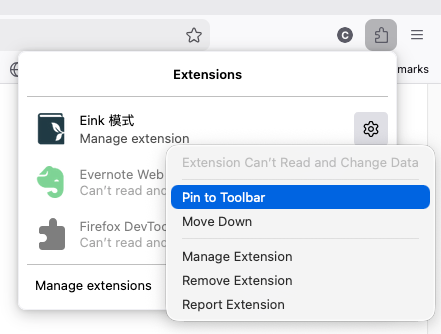
Once pinned, you can launch Eink Mode in the following ways:
-
Click on the Eink mode in the toolbar
 icon
icon
-
Press the shortcut:
Ctrl + Shift + 1(Windows) orCommand + Shift + 1(Mac) -
If you have granted permission to "Access data on all sites," press the
Ekey
2. Understand Hyperlink Behavior
In Eink Mode, when you click on a hyperlink, it will not directly jump to the designated webpage of the hyperlink. Instead, a pop-up menu will appear, allowing you to choose from the following actions:
- Open the hyperlink in the current tab.
- Open the hyperlink in a new browser tab.
- Previous page or next page button
- If the link jumps to a certain location within the article, an internal jump menu button will appear.
This design is intended to allow you to confidently tap to flip pages in Eink Mode, without accidentally clicking hyperlinks and jumping to other pages.
3. Open Tools Menu
You can open the tools menu in the following ways:
- Long press the left mouse button on the screen
- Press the shortcut
Z
In the tools menu, you can adjust font size, background theme, drawing, highlight tools, or view the user manual.
Encountering Issues?
Web Page Displays Abnormally
If the page displays abnormally in Eink Mode, please try:
- Refreshing the page
- Exiting Eink Mode (press Q) and then refreshing again
Web Page Unresponsive
If Eink Mode causes unresponsiveness on certain websites:
- Disable Eink Mode on the "Manage Extensions" page
- Refresh that website
- Please report this issue to us, helping us improve Eink Mode, thank you! bacink.contact@gmail.com
Need More Help?
For more tips and FAQs, please refer to our Quick Tips and Troubleshooting Guide.
Happy reading! 📖